Biggest Predator Z35P Bmiphz Buying Mistakes (And How to Avoid Them)
The Acer Predator Z35P bmiphz stands as a landmark in the evolution of ultrawide gaming monitors. When it first hit the market, it promised to bridge the gap between high-speed competitive performance and the immersive cinematic experience of a 35-inch curved display. Even years after its debut, it remains a sought-after piece of hardware on the secondary market and in specific retail niches. However, because it occupies a complex intersection of panel technology, refresh rates, and physical dimensions, many enthusiasts fall into predictable traps when integrating this monitor into their setup. Buying a high-end display is rarely as simple as checking a resolution box; it requires an understanding of how VA panel technology interacts with G-Sync hardware and how a 1800R curve affects long-term ergonomic health.
High-end electronics represent a significant investment of both capital and desk real estate. The Predator Z35P, with its distinctive red-and-black aesthetic and aggressive stand design, is often the center-piece of a workstation. Yet, many users find themselves disappointed not because the monitor is inherently flawed, but because their expectations did not align with the specific technical realities of the 1440p ultrawide format. This article serves as an exhaustive guide to the common pitfalls associated with acquiring and setting up the Predator Z35P, ensuring that current and prospective owners can maximize the value of this premium peripheral.
Understanding the Predator Z35P Architecture
To avoid buying mistakes, one must first understand what the Z35P actually is. At its core, the bmiphz model is a 35-inch curved display with a 3440 x 1440 resolution. This 21:9 aspect ratio provides approximately 35% more horizontal screen real estate than a standard 16:9 widescreen monitor. It utilizes a Vertical Alignment (VA) panel, which is a critical distinction from the In-Plane Switching (IPS) panels found in many of its contemporaries. VA technology is prized for its high contrast ratios and deep black levels, often reaching 2500:1 or 3000:1, whereas IPS typically struggles to exceed 1000:1. This makes the Z35P an exceptional choice for gamers who play in dark rooms or enjoy atmospheric, horror, and space-simulation titles.
The monitor features a native refresh rate of 100Hz, which is overclockable to 120Hz via the on-screen display (OSD) settings. It is built around NVIDIA's dedicated G-Sync processor, providing hardware-level variable refresh rate (VRR) support. This ensures that even if a user’s frame rate fluctuates in demanding titles, the screen remains free of tearing and stuttering. However, this hardware-specific focus leads to the first and most common buying mistake: failing to account for hardware compatibility and cable bandwidth limitations.
Common Pitfall #1: Overlooking the GPU and Connector Requirements
A significant number of buyers assume that any modern graphics card can drive the Z35P to its full potential. While it is true that almost any modern GPU can output a 3440 x 1440 signal, the G-Sync module requires a compatible NVIDIA GeForce card to function. While NVIDIA eventually opened up "G-Sync Compatible" support for FreeSync monitors, the reverse is not always as seamless. Users with AMD Radeon cards will not be able to utilize the variable refresh rate features of the Z35P, as it uses the proprietary version 1 G-Sync module. Buying this monitor for an AMD-based system is a waste of the premium price paid for the NVIDIA silicon inside.
Furthermore, many users attempt to connect this monitor via HDMI and are frustrated when they cannot reach the 100Hz or 120Hz refresh rates. The Z35P features DisplayPort 1.2 and HDMI 1.4. In the era this monitor was designed, HDMI 1.4 was the standard, but it lacks the bandwidth for high-refresh ultrawide gaming. To achieve the 120Hz overclock, one must use the DisplayPort connection. A common mistake is using an inferior, non-certified DisplayPort cable that leads to signal flickering or "black-screening" when the overclock is engaged. Investing in a VESA-certified DisplayPort cable is a non-negotiable requirement for this specific model.
Common Pitfall #2: Misjudging Panel Technology (IPS vs. VA)
The debate between IPS and VA is central to the Z35P experience. Many buyers move from a 24-inch or 27-inch IPS gaming monitor to the Z35P and are immediately struck by "black smearing." This is a characteristic of VA panels where dark pixels take longer to transition than lighter pixels, resulting in a trail or "ghosting" effect behind moving objects in dark scenes. In fast-paced competitive shooters like Counter-Strike or Valorant, this can be a dealbreaker for some.
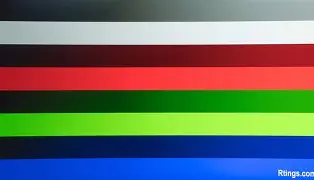
The mistake here is expecting the motion clarity of a high-end IPS panel. However, the trade-off is the immersive depth of image. When playing games like The Witcher 3, Cyberpunk 2077, or Elite Dangerous, the Z35P provides deep, rich shadows that IPS panels cannot replicate. Buyers who prioritize competitive edge over cinematic immersion often regret the Z35P, while those who want a "theater-like" experience often find it superior. Understanding your primary use case—competitive FPS vs. immersive RPG/Sim—is vital before committing to this VA beast.
Common Pitfall #3: Underestimating Physical Dimensions and Weight
The Predator Z35P is an absolute titan. With its stand, it weighs nearly 28 pounds (12.7 kg) and spans over 33 inches in width. A common error is purchasing this monitor for a shallow or flimsy desk. Because the stand is deep—protruding significantly both forward and backward—it can push the screen uncomfortably close to the user's face if the desk is less than 30 inches deep. Furthermore, the "wolf-claw" design of the feet requires a wide, flat surface. Users attempting to fit this into a corner desk or a compact workstation often find themselves having to buy a VESA desk mount, adding another expense and complexity to the setup.
Shop the latest Electronics picks on Amazon.
Shop Amazon →Pros and Cons Analysis
To help categorize where the Predator Z35P excels and where it falls short, consider the following technical and experiential points:
- Pro: Exceptional Contrast Ratio – The VA panel produces blacks that look truly black rather than the "IPS glow" gray, making it ideal for nighttime gaming sessions and cinematic viewing.
- Pro: Robust Build Quality – Acer’s Predator line is known for premium materials. The Z35P features a sturdy aluminum stand, high-quality plastics, and a reliable hinge mechanism for height and tilt adjustments.
- Pro: Hardware-Level G-Sync – Unlike software-accelerated VRR, the dedicated G-Sync module provides a wider range of frequency support and exceptionally low input lag across the entire refresh rate spectrum.
- Pro: Integrated Features – The inclusion of 9W speakers (which are surprisingly decent for monitor standards) and a 4-port USB 3.0 hub makes cable management for peripherals much easier.
- Con: Ghosting/Smearing – As a VA panel, it suffers from slow dark-level transitions. While the Overdrive settings can mitigate this, they can also introduce "overshoot" or coronas around objects.
- Con: Limited Viewing Angles – Compared to IPS, the Z35P will show slight color and contrast shifts if you view it from extreme side angles or if you are sitting too close to the edges.
- Con: Substantial Power Consumption – Large ultrawide G-Sync monitors are power-hungry compared to standard 27-inch displays, and the external power brick is quite bulky.
Technical Specification Comparison
When evaluating the Z35P, it is often compared to its predecessor (the Z35) and its IPS-based cousin (the X34P). The following table outlines how the Z35P positions itself within that landscape to help buyers avoid choosing the wrong model for their performance needs.
| Feature | Predator Z35 (Old) | Predator Z35P (This Model) | Predator X34P (IPS Alternative) |
|---|---|---|---|
| Resolution | 2560 x 1080 (WFHD) | 3440 x 1440 (UWQHD) | 3440 x 1440 (UWQHD) |
| Panel Type | AMVA | VA | IPS |
| Refresh Rate | 144Hz (200Hz OC) | 100Hz (120Hz OC) | 100Hz (120Hz OC) |
| Contrast Ratio | 3000:1 | 2500:1 | 1000:1 |
| Pixel Density | 81 PPI (Low) | 106 PPI (Sharp) | 109 PPI (Sharp) |
| Viewing Angles | Fair | Good | Excellent |
Comprehensive Buying Guide: How to Avoid Post-Purchase Regret
To ensure a successful purchase of the Predator Z35P, follow this structured evaluation process. This guide addresses the technical nuances that casual reviews often skip but which impact daily use significantly.
Step 1: The "Distance to Screen" Audit
Because the Z35P features an 1800R curve, it is designed to be viewed from a specific focal distance—usually between 2 and 3 feet. Using this monitor at a distance of 1 foot will cause the edges to appear distorted due to the VA panel's viewing angle limitations. Conversely, sitting 5 feet away makes the curve almost irrelevant. Before buying, measure your desk. You want a minimum of 28 inches of depth to accommodate the stand and still have room for your keyboard and mouse without feeling like you are "inside" the screen.
Step 2: Checking the Overclock Stability
If you are buying a used Z35P, the most critical test is the 120Hz stability test. Not all Z35P units are created equal; while the native 100Hz is guaranteed, the 120Hz is an "overclock." Some early production units were known to have "scanlines" or slight flickering when pushed to 120Hz. If purchasing second-hand, always ask the seller to demonstrate the monitor running at 120Hz in a windowed game or using a refresh rate test tool. If the panel exhibits thin horizontal lines or intermittent blackouts at 120Hz, it is a "lottery loser" and should be priced accordingly.
Step 3: Evaluate Your Room Lighting
The Z35P features a semi-matte finish that does an admirable job of diffusing reflections. However, because it is a curved screen, it can catch light from side windows or lamps in a "stretched" fashion, creating glare across a larger portion of the panel than a flat screen would. If your office has a large window directly behind your seating position, the deep blacks of the VA panel will be obscured by reflections. The Z35P is at its best in a controlled lighting environment where it can truly flex its contrast muscles.
Step 4: Understand the Pixel Pitch
A common mistake for users coming from 4K displays is underestimating the pixel density. At 1440p across 35 inches, the Z35P has a pixel density of roughly 106 pixels per inch (PPI). This is the "sweet spot" for many gamers because it doesn't require Windows scaling (text is readable at 100% scale), and it is significantly sharper than the 1080p ultrawides. However, if you are a professional graphic designer or someone used to the "retina" density of a 4K 27-inch screen, you will notice individual pixels if you look closely. If your work requires extreme precision in vector lines or high-density photo editing, the Z35P is a gaming tool first and a productivity tool second.
Step 5: Assessing the G-Sync Premium
One of the biggest financial mistakes is paying the "G-Sync Tax" without needing it. The Z35P contains a physical G-Sync chip. If your PC is powerful enough to maintain a locked 120FPS in all your games, you are technically not using the primary benefit of that chip (VRR). However, at 3440 x 1440, even high-end GPUs like a 3080 or 4070 will occasionally drop frames in intensive scenes. This is where the Z35P shines. If you are a user who hates screen tearing and refuses to use V-Sync due to input lag, the Z35P’s hardware G-Sync is one of the most reliable implementations ever made. If you don't care about tearing or use an AMD card, look for the FreeSync equivalents to save significant money.
Discover deals on Electronics — updated daily.
Shop Amazon →Advanced Calibration Recommendations
Once you have avoided the buying mistakes and the Z35P is on your desk, the final "mistake" is leaving it on the factory settings. Out of the box, the Predator sequence often ships in "Racing" or "Standard" modes with the brightness set to 80% or higher. For a VA panel, this can wash out the colors and make the black smearing more noticeable.
To get the best out of the display, many calibration experts recommend dropping the brightness to between 20% and 35% for indoor use. Setting the Overdrive to "Normal" is generally the best compromise; "Off" leads to too much ghosting, while "Extreme" introduces significant blue/white halos (overshoot) around moving objects. Furthermore, utilizing a colorimeter like a Spyder or X-Rite can correct the slight red-tint bias that many Acer Predator units exhibit in their "Warm" color temperature setting. For those without hardware calibration, sticking to the "User" mode and slightly backing off the Red gain can result in much more natural skin tones and white balances.
Ergonomics and Long-Term Use
The 1800R curve is relatively aggressive compared to the subtle 3800R curves of some professional monitors. While this increases immersion, it can also lead to neck strain if the monitor is not positioned correctly. Because the screen is so wide, users often find themselves "pivoting" their neck rather than moving their eyes. To avoid this, ensure the top third of the monitor is at eye level. The Z35P’s stand offers excellent height adjustment (about 5 inches of travel), which should be utilized to keep your spine neutral. If you find the monitor is still too low, or if the massive feet are taking up too much space, switching to a heavy-duty gas-spring monitor arm is a highly recommended "phase two" of the Z35P ownership experience.
Finally, consider the heat. Large monitors with dedicated G-Sync modules and built-in power processing generate a noticeable amount of heat from the top vents. In a small, unventilated room, the Z35P can raise the ambient temperature by a few degrees over several hours of gaming. This is rarely a dealbreaker, but it is a factor for those in warmer climates or cramped quarters.
Conclusion
The Acer Predator Z35P bmiphz remains a formidable contender in the ultrawide market, offering a specific blend of 1440p sharpness, VA-driven contrast, and hardware-accelerated G-Sync fluidity. The "biggest mistakes" cited by users—such as ignoring the limitations of VA response times, failing to check desk compatibility, or attempting to use high refresh rates via HDMI—are all entirely avoidable with proper research.
By understanding that this monitor is a specialized tool designed for immersion and atmospheric gaming, you can set realistic expectations. It is not the fastest screen for professional eSports, nor is it the most color-accurate screen for print media professionals. Instead, it is a master of the middle ground: a display that makes games look massive, deep, and incredibly smooth. If you have the NVIDIA hardware to drive it and the desk space to hold it, the Z35P provides an experience that standard widescreen monitors simply cannot match. Avoiding the common pitfalls mentioned here ensures that your transition to the world of curved ultrawide gaming is as seamless as the G-Sync performance itself.